Home / Statistical Tools / QFD, FMEA, & Pugh / QFD / Qfd Tutorial / Using wizard to Create PCM
Using Wizard to Create PCM
Step #1: From the Stat Tools Tab, select the option QFD Wizard > Start Wizard.
Step #2: The Wizard Dialog will pop up. Enter the number of customer requirements in the box provided.
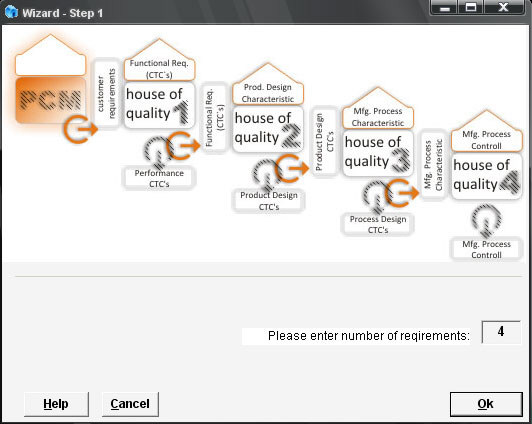
Step #3: Press Ok.
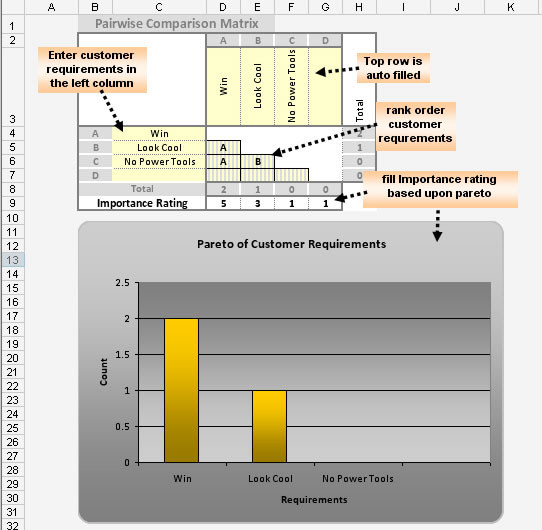
The wizard will create a new worksheet labeled "PCM 1". The new worksheet contains an empty pairwise comparison matrix (PCM). The left column and top row represent customer requirements. The left column is used for entering customer requirements. The top row will be automatically filled.
Step #4: Enter customer requirements in the left column.
Step #5: Rank order customer requirements.
Step #6: From the Excel menu bar, select Stat Tools Tab > Pairwise > Pareto Pairwise.
Step #7: If you want to override automatic ratings, you can use the Pareto chart to fill the importance rating row.
Following is an example of creating a PCM for a pinewood derby race car.