Home / DOE / Analyze / Optimize
Optimize
From Excel click...
QXL DOE Tab > Optimize
Quantum XL will optimize regression models for Quantitative, Binary, and Nominal outputs by selecting QXL DOE Tab > Optimize.
Optimization is a two-step process.
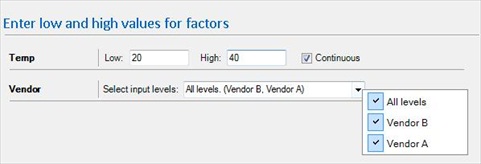
Step #1: Setting the low and high values for optimization
You can change the area in which Quantum XL will search for an optimal by editing the low and high values. The default for these is the low and high values of the DOE when it was created.
You can indicate that a quantitative input is discrete by deselecting the box next to "continuous". This will force the optimizer to choose integers (21, 22, 23, ...) instead of real numbers.
Valid values for categorical values can be set by a drop down box.
Step #2: Defining the goal and constraints
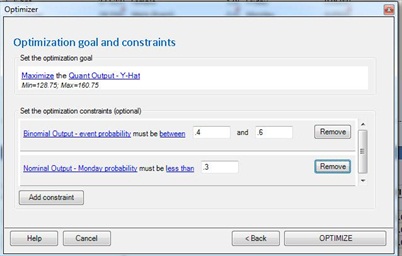
Goal: You can maximize, minimize, or set a target for any individual output (Y-hat, S-Hat, Binomial Logistic, or Nominal Logistic). You can only define one goal; however, multiple constraints can be defined.
Constraints (optional): Constraints allow you to control the optimization of multiple outputs simultaneously. In the screen shot below, the model has three outputs: one quantitative, one binomial, and one Nominal. The optimization is set up to maximize the quantitative output while keeping the probability of the binomial output between .4 and .6 and keeping the probability of Monday in the Nominal output less than .3.