Home / Statistical Tools / Enable/Disable Auto Start in Excel 2013+
Enable/Disable Auto Start in Excel 2013 and Later
Follow these steps to add Quantum XL to Excel so that it starts each time Excel 2013 (or later) starts
Step #1: Start Microsoft Excel 2013 (or later).
Step #2: Click the File tab, and then click Options.
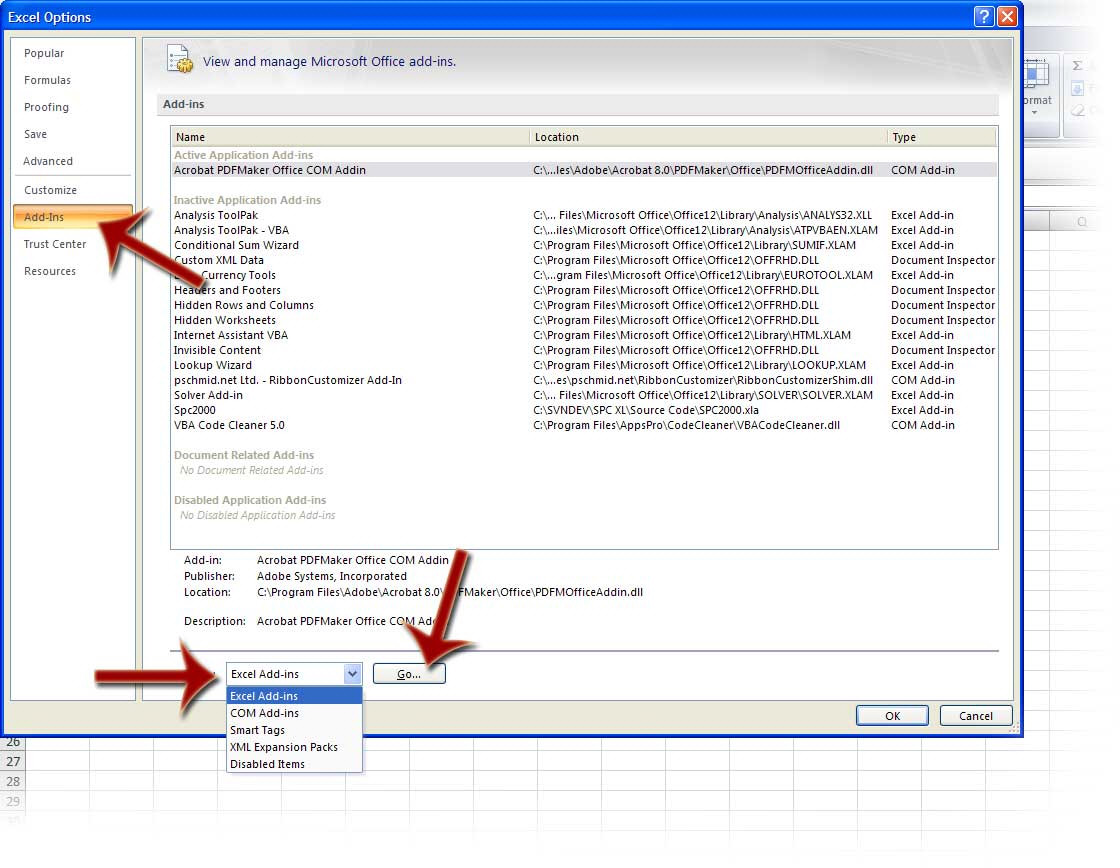
Step #3: Click the Add-Ins tab; select Excel Add-Ins from the Manage: list box and then click the Go button.
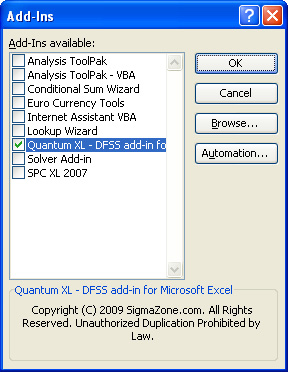
Step #4: If you see Quantum XL in the add-ins list, check the check box next to Quantum XL. Go to step #7.
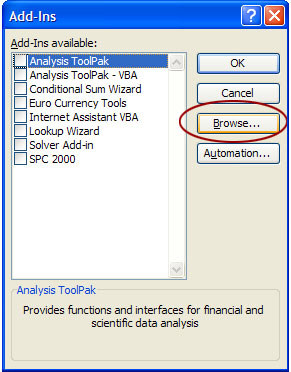
Step #5: If you do not see Quantum XL in the add-ins list, click the Browse button and locate the Quantum XL folder. By default, this folder should be C:\Program Files\SigmaZone\Quantum XL. However, if you installed Quantum XL into a different folder, then use the folder you designated during the install process.
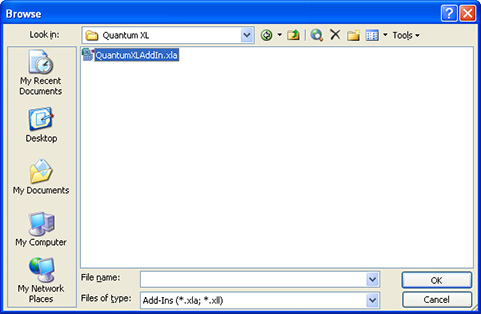
Step #6: Select the QuantumXLAddIn.xla file and click OK.
Step #7: Quantum XL will auto-start the next time you start Microsoft Excel 2013 (or later).
Follow these steps to remove Quantum XL from Excel's start up list
Step #1: Start Microsoft Excel 2013 (or later).
Step #2: Click the File tab, and then click Options.
Step #3: Click the Add-Ins tab; select Excel Add-Ins from the Manage: list box and then click the Go button.
Step #4: If you see Quantum XL in the add-ins list, uncheck the check box next to Quantum XL. Click on OK to finish.