Home / Monte Carlo / Model Building / Define Multiple Inputs Simultaneously
Define Multiple Inputs Simultaneously
Quantum XL allows the rapid creation of models with large numbers of inputs or outputs. All you have to do is:
-
Select a range of cells you want to define inputs for.
-
Select Mark Input from the shortcuts bar (
 ).
).
Input parameters can be actual values or they can link to a cell(s). You can choose between relative and absolute links.
Actual Values
For each input parameter (Name, Mean, Standard deviation, ...) you can type in the actual value (text or a number).
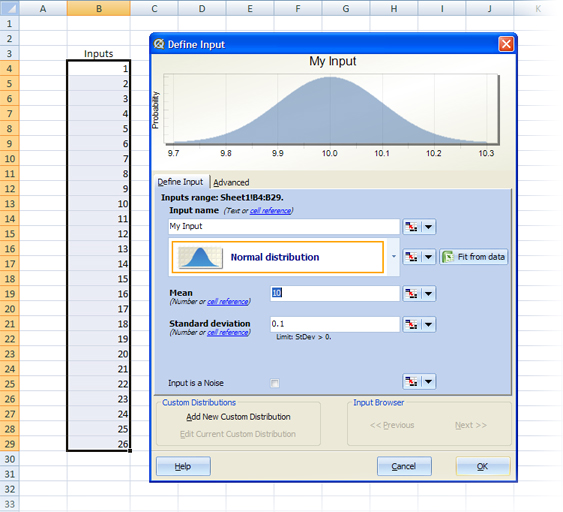
In this example, cells B4:B29 will be marked as inputs. They will all have the 'Normal' distribution type, Mean of 10 and Standard deviation of 0.1. However, Input names will differ. The text 'My Input' will be used as a template for generating the names. Quantum XL will use that template to generate names for each input. In this case, names of the inputs would be:
- Cell B4 -- 'My Input'
- Cell B5 -- 'My Input 2'
- Cell B6 -- 'My Input 3'
- ...
- Cell B29 -- 'My Input 26'
Relative links
Instead of typing values for the parameter(s) for each input, you can link the parameter(s) to Excel cells. When you define group of inputs simultaneously, you will link parameter(s) for the first input. Quantum XL will recognize a pattern and link other inputs to appropriate cells. These types of links are 'relative links'.
-
Select the range of cells you want to define inputs for. The range is (B4:B29) in this example.
-
Select Mark Input from the shortcut bar (
). -
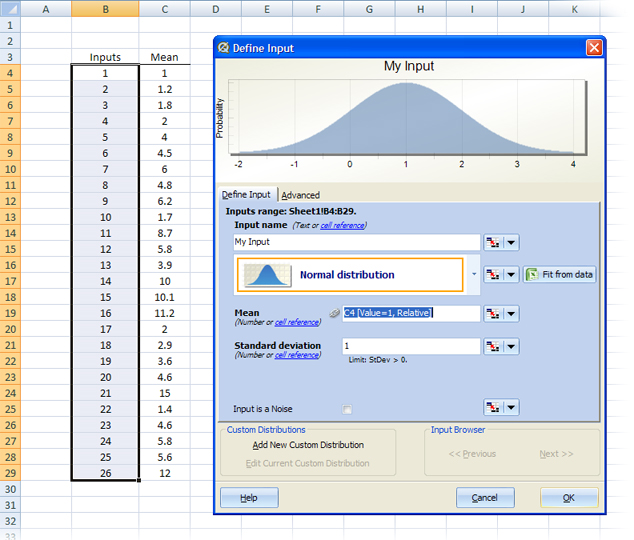
Our goal is to link Mean for input in B4 to cell C4, Mean for B5 to cell C5, ...
-
In the Define Input dialog box, click on the link button (
 ) next to the Mean text box, and select cell C4.
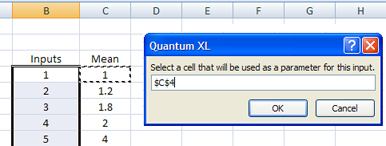
- Quantum XL will detect the following pattern (for this example): Mean for each input is cell one column to the right of the input. This means that input in B5 will have Mean parameter linked to cell C5.
Absolute links
Sometimes it is useful for all inputs to have their parameter linked to the same cell. Changing the value of a single cell will be reflected in all inputs that link to that cell.
-
Select the range of cells you want to define inputs for. The range is (B4:B29) in this example.
-
Select Mark Input from the shortcut bar (
). -
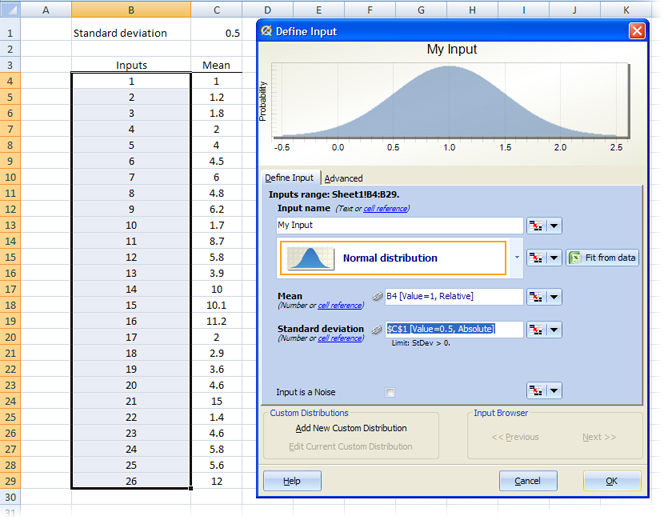
Our goal is to link the parameter Standard Deviation for all inputs to the same cell, C1.
-
In the Define Input dialog box, click on the arrow button next to the Standard Deviation text box, select 'Absolute' from the pop-up menu, and then select cell C1.
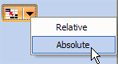
- Quantum XL will define cell C1 as a Standard Deviation for all the inputs.