Home / DOE / Create Designs / Taguchi Designs
Taguchi Designs
From Excel click...
QXL DOE Tab > Create Design > Create Taguchi Design
Taguchi Designs can be created by selecting QXL DOE Tab > Create Design > Create Taguchi Design. Taguchi designs can be 2-Level, 3-Level, and mixed levels.
Select Taguchi design
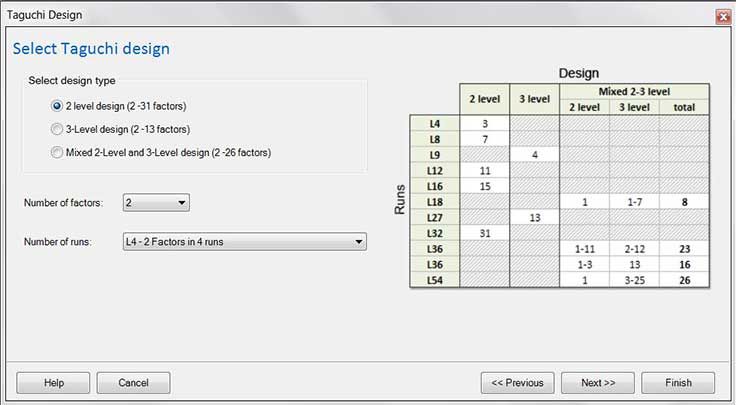
The available designs are displayed in the table to the right (see below). After you have chosen the desired design, use the buttons to select between 2-Level, 3-Level, or Mixed level designs. Enter the number of factors in the drop down box, and then choose the number of runs.
Factors
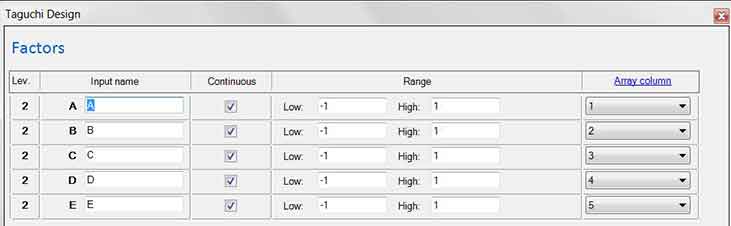
Level: The number of levels for this factor (column). This cannot be set, but rather is the part of the design you have chosen.
Factor name: Enter a unique name for the factor. Make the name short but descriptive. For example, use "Temp" instead of "Temperature" as it will make reading the results in the regression table easier.
Categorical: Check the box for the factor if the input is Categorical (qualitative). Leave it empty if the input is Quantitative. Click here for more information about Quantitative vs. Categorical.
Level 1, Level 2, Level N: Enter the level for each factor.
Quantitative Variables: If the variable is quantitative the levels should be numeric values. For example, Low = 100, High = 200.
Categorical (Qualitative) Variables: Enter unique values for each level. Example: "Vendor A", "Vendor B", "Vendor C".
Array Column
Each factor (input) in a Taguchi design is assigned to a specific array column. By default, Quantum XL assigns the inputs in the columns in numerical order.
- Factor A is assigned to Column 1
- Factor B is assigned to Column 2
- Factor C is assigned to Column 3...
You can change the default assignment by using the drop down box under the "Array Column" heading.
Define outputs (responses)
Click here for more information...