Home / Monte Carlo / Model Building / Merge Designs
Merge Designs
From Excel click...
QXL Monte Carlo Tab > Create / Modify Design Sheet > Merge Designs
Quantum XL supports several forms of model building including Free Form Model Building, Create Design (IPO) Sheets, Import from DOE Pro, Merge Designs, Visual Merge, and Convert to Visual.
Quantum XL supports two types of model merging: Merge Designs and Visual Merge. This help topic covers both types of merging.
The merge design feature allows multiple IPO Sheets to be combined into a single model. For models to be merged, the following conditions must be met:
-
The name of the output in the first model must match the name of the input in the second model.
-
Both models must be in legacy IPO Sheet format.
Example
Files used in this example:
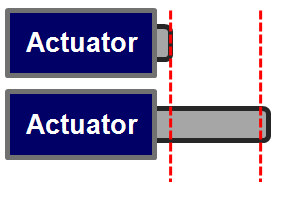
A linear actuator is shown in the diagram below. The actuator must translate from the left dotted line to the right dotted line (.02 meters) in .05s +/-- .005s (between .045 seconds and .055 seconds).
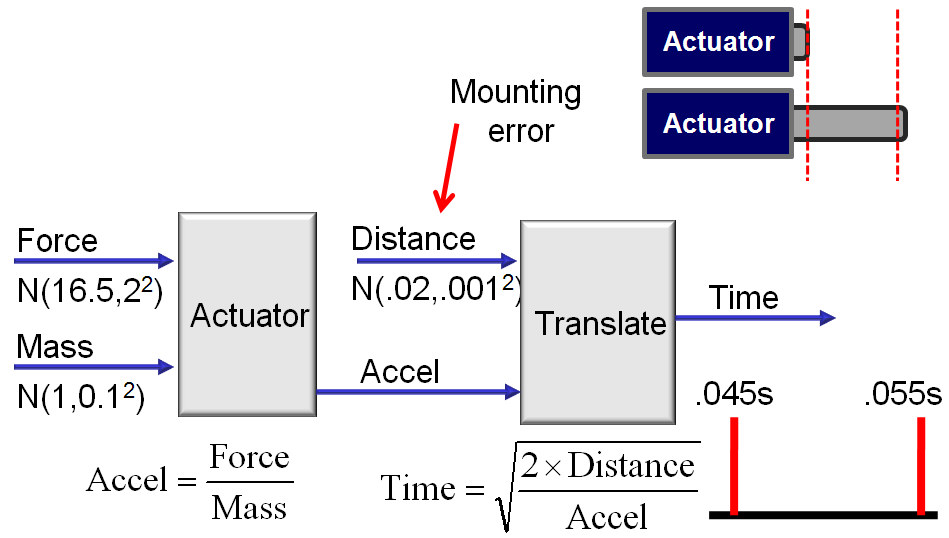
The actuator can be modeled using the acceleration of the actuator and the distance the actuator must translate. This model relationship is displayed below. The left part of the model reflects the model for acceleration and the right part of the model reflects the time it takes to translate the required distance.
The acceleration model in Quantum XL is shown below.

The time model in Quantum XL is shown below.

The output of the acceleration model is named Accel, and one of the inputs to the time model is also named Accel. In order for the merge feature to work, the input/output pair must have the same name. If you are not successful in merging the models, try copying the name from the output of the first model and pasting it over the name of the input in the second model.
To initiate a normal merge, select Merge Design from the Create/Modify Design Sheets group.
To initiate a visual merge, select Visual Merge from the Create/Modify Design Sheets group.
The Merge IPO Sheets window (see below) gives you control over how the merge should be performed.
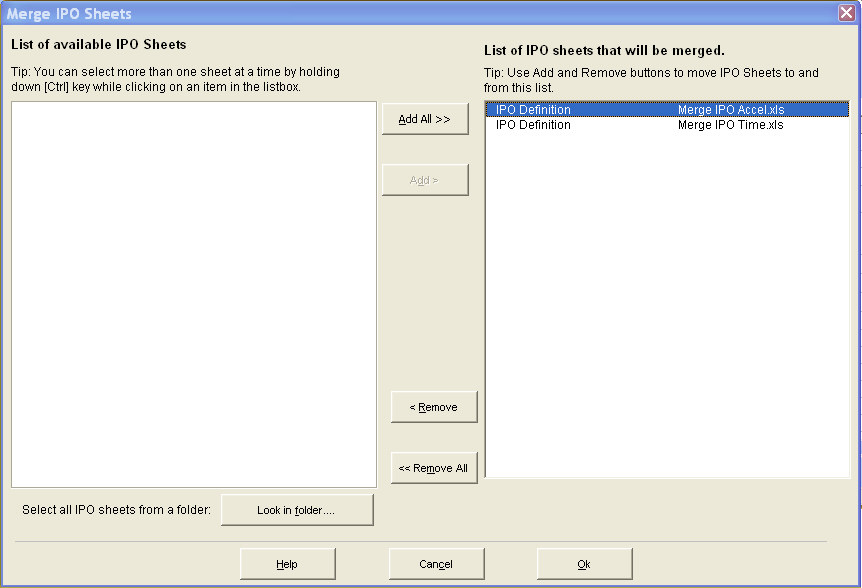
When you selected Merge Design or Visual Merge, all the open workbooks were analyzed by Quantum XL to determine if they contained IPO Sheets. If they did, then they were added to the pane on the right entitled 'List of IPO Sheets that will be merged'. If you do not want one or more of the sheets to be merged, then select the name of that worksheet and click on the < Remove button. You can control which worksheets will be merged by using the Add > and < Remove buttons.
If you would like to merge all of the workbooks in a folder, select the 'Look in folder....' button to select the folder and have Quantum XL open the contents.
Press the Ok button to continue with the merge operation.
Quantum XL will merge the two models into a single model. If you selected Merge Design, the result will look like the model below.
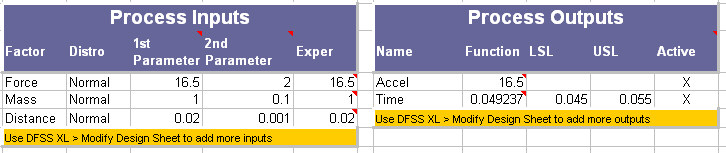
You should note that Accel no longer appears as an input to the model. This is due to the fact that the calculated value of Accel is used now instead of the distribution for Accel.
If you selected Visual Merge, the result will look like the model below.

The visual merge results in a model with the same mathematical properties as the normal merge, but the resulting display is more graphical. Using the visual merge, it is easier to see that Accel is the output of the left model and an input into the right model.
The goal of both Merge Design and Visual Merge is to combine multiple models into a single model.