Home / Statistical Tools / QFD, FMEA, & Pugh / QFD / Qfd Tutorial / Using Wizard to create other HOQs
Using Wizard to Create Other HOQs
Step #1: From the Stat Tools Tab menu, select the option QFD Wizard > Next Step.
Step #2: The Wizard Dialog for step three will pop up. Enter the number of rows (Characteristics Critical to Quality -- CTQs) and number of columns (Product Design Characteristics). The default number of rows is the Number of CTQs from the prior HOQ + 5. The default number of Product Design Characteristics is the Number of CTQs * 1.5. This allows growth.
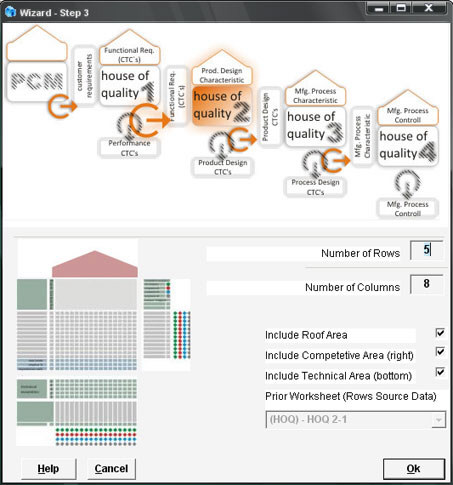
Step #3: Press Ok. The Wizard will create a new worksheet labeled "HOQ 1-2".
The following steps are very similar to the steps in Using Wizard to Create first HOQ.
Step #4: Enter the Product Design Characteristics in the top row.
Step #5: Fill in the relationships in the central part of the Core area by entering the relationship value in the cell where relationships exists between the CTQ and Product Design Characteristics.
Step #6: In the roof area, fill in the correlations between Product Design Characteristics. Correlations go from strong negative to strong positive.
Step #7: Fill the Competitive Evaluation Area. Rank your company vs. the competition.
Step #8: Fill the Technical Evaluation Area. Enter the targeted value for each Product Design Characteristic, and how technically difficult it is to achieve that value. Rank your company.
Step #9: Pareto HOQ. From the Stat Tools Tab menu, select the option QFD > Pareto HOQ. If you want to override automatic ratings, you can use the Pareto chart to fill the importance rating row. It will be used for the next HOQ.