Home / Statistical Tools / Additional Tools / Random numbers
Random numbers
From Excel click...
QXL Stat Tools Tab > Random numbers
Use this feature to generate random data in an Excel worksheet. Random data can be generated from one or more of the following distributions.
- Normal
- Exponential
- Uniform Continuous
- LogNormal
- Triangular
- Weibull
- Gamma
- Logistic
- LogLogistic
- Uniform Discrete
- Poisson
- Binomial
- Binary
The output can be either in table format or in 'group by' format.
Table format
For table format, Quantum XL will generate data column(s) for each random number generator:
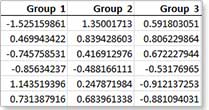
Step #1
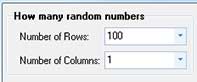
Define how many random numbers Quantum XL should generate by providing number of rows and columns. Since it is possible to define multiple random number generators, each one will use these settings. So, if you define Normal and Uniform random number generators, and set 100 rows and 2 columns, each generator will generate 100*2=200 random numbers.
Maximum number of rows is 20,000. Maximum number of columns is 200.
Step #2
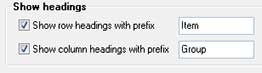
If 'Show headings' check boxes are checked, Quantum XL will display column headings in the first row and row headings in the first column. Patterns for creating column and row labels are taken from the 'Prefix' text boxes. The default is 'Item' for rows and 'Group' for columns. Quantum XL will add ordinal numbers to these patterns, producing the following sequence: 'Item 1', 'Item 2', 'Item 3', ...
Step #3
You can define one or more random number generators. Select distribution type from the combo box and enter distribution-specific parameter values.

You can add generators by clicking the 'Add' button or remove generators by clicking the 'Remove' button located at the left side of each generator.
 |
'Add' button, located below the last generator. |
 |
'Remove' button, located at the upper left corner of each generator. |
After you define generators, click 'Generate'. Quantum XL will create random numbers and write them to a new Excel worksheet.
'Group by' format
For the 'group by' format, Quantum XL will create one data column and one or two columns with labels (Factor levels).
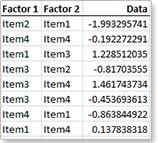
Step #1
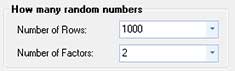
Define how many random numbers Quantum XL should generate by providing number of rows and number of factors. You can select between one and two factors. Maximum number of rows is 20,000.
Step #2
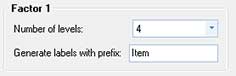
Define number of levels for each factor. Labels for each level are generated from the 'Prefix' text boxes. The default is 'Item'. Quantum XL will add ordinal numbers to these patterns, producing the following sequence: 'Item 1', 'Item 2', 'Item 3', ... The maximum number of levels is 20. Number of levels in Factor 1 controls the number of generators.
Step #3
Define the generator for each level in Factor 1. Select distribution type from the combo box and enter distribution-specific parameter values.
After you define generators, click 'Generate'. Quantum XL will create random numbers and write them to a new Excel worksheet.